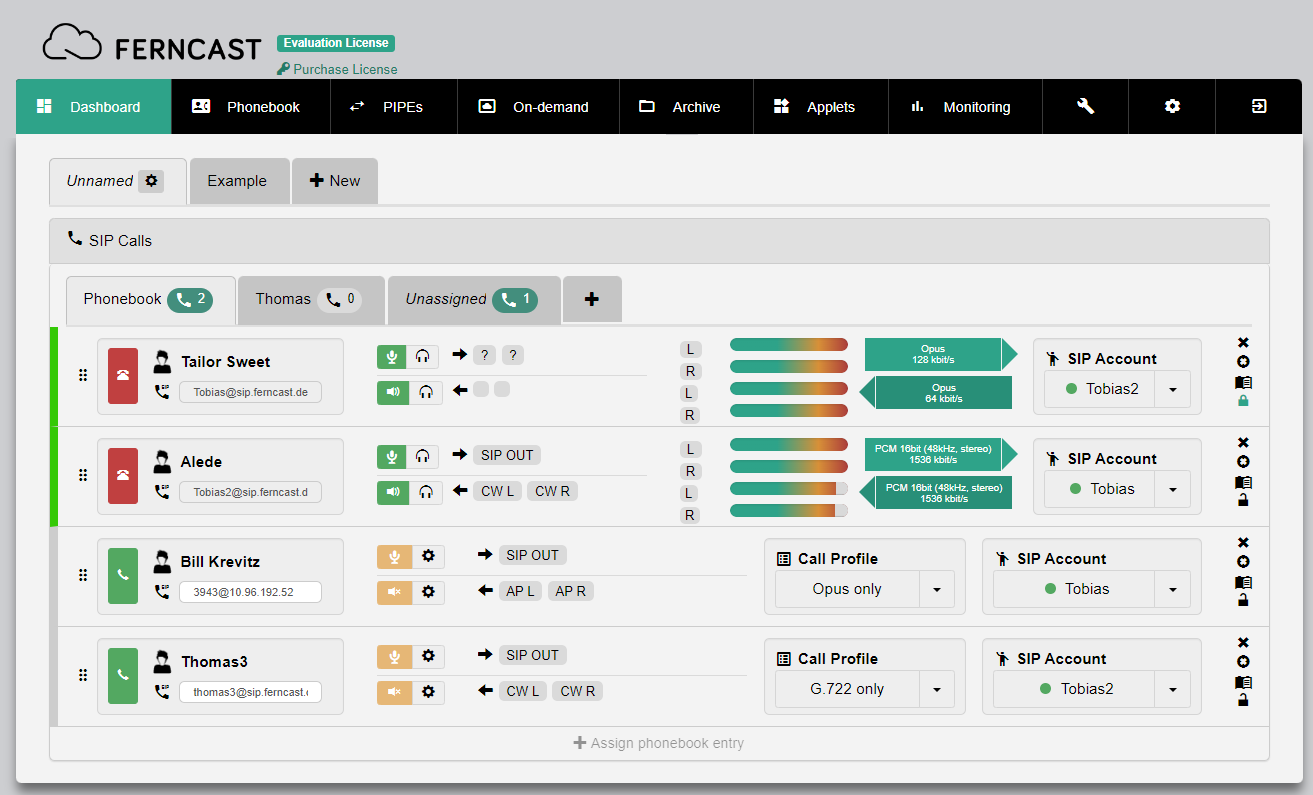
This widget serves control and monitoring of multiple SIP calls in the form of a SIP phonebook contact list. After setup, your entire SIP workflow can be handled with it.
| ! | Phonebook connection |
| This widget is connected to the Phonebook. Contacts you add to the list must either already exist in the Phonebook or will be added to it if you create any new contacts via this widget. |
| L | Guide SIP Configuration |
| See the Guide SIP Configuration for an in-depth explanation of how to configure SIP. |
| ! | Adding the first entry, editing and deleting tabs |
|
| Element | Description |
| This table lists the buttons and menus in the SIP Calls widget from left to right, top to bottom. | |
| Tabs Header |
Shows all tabs configured for this SIP calls widget. Also includes the Unassigned tab and +.
|
|
Sorting Drag (6 circles) |
Drag and drop to reorder placement of the entry in the list. |
| Call Button | Starts a call with the respective entry. |
| Contact name | Displays the name of the entry. |
| Contact SIP address | Displays the SIP address of the entry. |
|
Mute button (Mic icon) |
Toggle to silence your input (audio transported to the other participant). |
|
Deafen button (Speaker icon) |
Toggle to silence your output (audio transported to you from the other participant). |
|
Input edit (top gear icon) |
Opens a menu with a dropdown to change the used SIP template for the input. |
|
Output edit (bottom gear icon) |
Opens a menu with a dropdown to change the used SIP template for the output. |
|
Input name (outgoing arrow) |
Displays either the name of the SIP template or audio channels used for the input. |
|
Output name (incoming arrow) |
Displays either the name of the SIP template or audio channels used for the output. |
| Level meters |
Displays the audio activity for the incoming and outgoing audio as level meters. Note: The level meters only appear during an active call with successful audio transmission. |
| Call Profile selector | Dropdown for selecting the call profile used for the call. |
| SIP Account selector | Dropdown for selecting the SIP account used for the call. |
|
Remove entry from view (X icon) |
Removes the entry from this tab of the SIP calls widget. Note: This does not delete the contact from your Phonebook. |
|
Bulk connect toggle (circled X icon / |
Toggles bulk call option for that entry. Each entry marked for bulk call (circled X icon changed to green checkmark icon) is called at the same time when the bulk call is started. Note: When at least one entry is marked for bulk call, the buttons to start and stop the bulk call appear in the widget header at the top right (phone icons). |
|
Show log messages (book icon) |
Opens menu window to check and filter Log messages associated with this entry. See the Log menu for an explanation of buttons and opptions in this window. |
|
Protect entry toggle (padlock icon) |
Toggles protection of this entry On or Off (padlock green and closed or open). Protected entries cannot be changed in the SIP Calls widget. |
| + Assign phonebook entry |
Opens selector menu to add additional entries to this SIP Call widget tab from the Phonebook or create new entries.
Note: New entries you create this way are also added to the Phonbook menu. |