| V | This guide is based on aixtream version 3.8.x. |
| ! |
|
In aixtream, an HLS stream differs from most other radio streams (like Icecast and RTMP) in the following ways:
- A complete HLS stream requires two PIPE elements: the HLS/DASH sink (teal) element and the HLS/DASH Upload audio processing (blue) element.
- It supports multiple bitrates (adaptive) and multiple encoding formats in a single stream by combining multiple HLS PIPEs in a single PIPE Group.
- It supports a redundant primary/backup configuration when deployed from two aixtream instances.
- It supports a master/slave type configuration as part of an HLS PIPE Group. Additional bitrates are configured as "slave" PIPEs.
This guide includes instructions on:
- Configuring a PIPE for HLS streams.
- Configuring the HLS/DASH sink element (as a master).
- Configuring the HLS/DASH Upload element (for a live stream).
- Setting up an HLS/DASH PIPE Group.
- Using the master/slave configuration.
All of the following instructions require you to be logged into the aixtream user interface as a User allowed to create and edit PIPEs and PIPE groups.
¶ Configuring the PIPE
Prerequisite: You are in the create new/edit pipe menu.
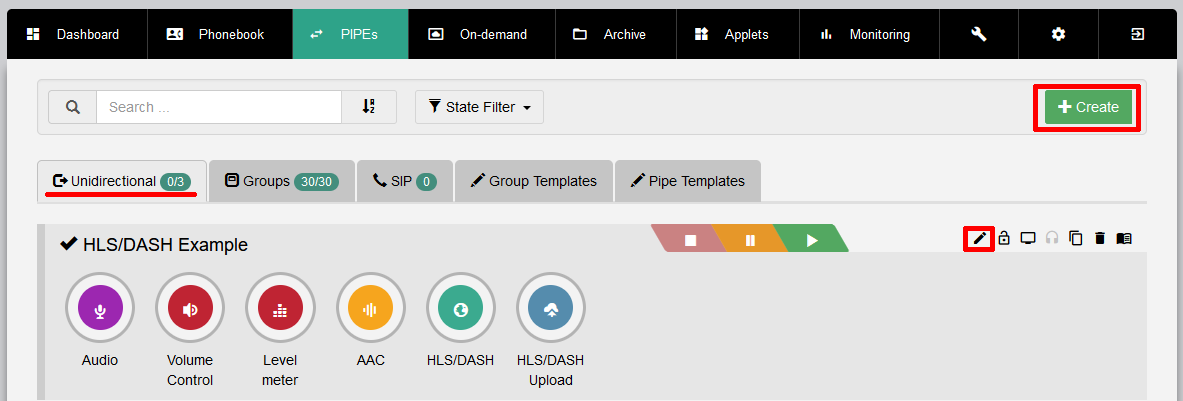
- Add the desired source, audio processing (red), and encoder elements.
- Configure the added elements as desired.
- Add the HLS/DASH sink element and (if the PIPE is intended to be a master, see below) the HLS/DASH Upload audio processing element.
- The PIPE is ready for HLS-specific configuration.
¶ Configuring the HLS/DASH sink element
- At minimum, a Playlist/Manifest must be added.
- Configuration related to the delivery of the HLS stream to the HLS server will be performed in the HLS/DASH Upload element.
See the following table for an explanation of all available settings.
| Element | Description | Notes |
| Master Config | ||
| master/slave dropdown |
Sets the PIPE to be master or slave. If the dropdown menu is set to “slave” all other options except Rendition groups are disabled, as they will be inherited from the “master” PIPE in the same PIPE group. |
There should be only ONE master PIPE in a PIPE Group. See the last section for details. If you are not using a PIPE Group, this PIPE MUST be the “master”. |
| Segment name prefix | Sets the prefix for each segment name. |
Placeholders can be used to dynamically name subsequent segments. By default, a continuous segment ID numbering (counting up) is used. See the tool tip in the UI for alternatives and more details. The preconfigured default ("segment") is normally sufficient. |
| Segment duration | Sets the length of each individual segment. |
The smaller the segment length, the lower the playback delay for the listener. This requires greater bandwidth to handle the larger amount of simultaneous uploads. It is possible to reduce the Segment duration down to 1 s. |
| Playlists/Manifests | ||
| New Entry | Accordion menu for configuration of a new manifest/playlist. Open this accordion menu to see the following options. |
|
| Manifest / master playlist name | Sets the name of the manifest. |
The suffix .m3u8 is automatically added. The preconfigured default ("master") is sufficient under most circumstances. |
| Primary Playback URL | Sets the primary playback URL to stream the content from the internet. This is the URL from which clients will receive the primary audio stream. |
Entering a URL is mandatory for most HLS servers (incl. many CDNs). If you are streaming to an HLS server that accepts streams without an explicit playback URL, you may leave this field empty. A relative path based on the remote path of the upload is used as playback URL then. The primary playback URL must be entered in both the primary encoder and the backup encoder. |
| Backup Playback URL | Sets the backup playback URL to stream the content from the internet. This is the URL from which clients will receive the backup audio stream. |
Entering a URL is mandatory for most HLS servers (incl. many CDNs). If you provide no backup playback URL, dynamically switching to a backup stream is impossible for the client player. The backup playback URL must be entered in both the primary encoder and the backup encoder. |
| Playlist length | Sets the length of the whole playlist. This determines how far back (in segments) a listener can time-shift. | “0” (unlimited) is only possible for on-demand playlists. |
| Type | ||
| HLS/DASH dropdown | Dropdown menu for selecting HLS or DASH formatting. | |
| Subplaylist prefix | Sets the prefix for subplaylist segments. | When streaming to Akamai CDN: Do not choose “index”, “playlist” or “master” as prefixes. |
| Rendition groups |
Defines one or more streams as belonging to a specific “rendition”. See the RFC for details: https://www.rfc-editor.org/rfc/rfc8216#page-28 |
|
| Name | Sets the NAME attribute for the rendition. | Each rendition must have a unique name. |
| ID | Sets the GROUP-ID of the rendition. | |
| Master Config | ||
| master/slave dropdown | Sets the Rendition group to be master or slave. | The same PIPE should have both the “master/slave” Master Config and “master/slave” Rendition group setting. |
| Default |
Toggles whether this rendition should be default for the client player.
|
There MUST be only one Default rendition in a rendition group. |
| Autoselect |
Toggles whether this is an auto select rendition.
|
|
| Add URI tag | Toggles whether the URL of the audio stream is added as a tag to the rendition group. It is recommend to be ON. | Normally, this is used in a video + audio stream to identify the source URL of the audio stream. In an audio-only stream, this means the stream URL is declared twice (in the playback URL and URL tag), but some client players require it, even for audio-only streams. |
| Language | Selects the language tag. This identifies the language of the rendition to the client player. You may select a choice from the dropdown or manually enter another language tag. |
See RFC5646 for details: https://www.rfc-editor.org/rfc/rfc5646 See ISO639 for the list of tags: https://iso639-3.sil.org/code_tables/639/data |
| Tags | Field for additional EXT-X-MEDIA tags to be added to the rendition. | See RFC8216 for a list of available tags: https://www.rfc-editor.org/rfc/rfc8216 |
¶ Configuring the HLS/DASH Upload audio processing element
Prerequisite: You created a new PIPE which includes an HLS/DASH sink (teal) element and an HLS/DASH Upload audio processing (blue) element. The PIPE must be created first, then aixtream fills the HLS/DASH Upload element automatically with basic configuration. The basic configuration can then be adapted.
| ! | This guide focuses on how to configure an HLS live stream. Thus only the Methods HTTP and HTTP (Akamai MLS 3/4) are explained. The Methods SMB, FTP, SFTP, rsync and Local are intended only for non-live audio. |
¶ Configuring Method HTTP
- Configure the primary stream by setting the following parameters.
- Select the Method in the dropdown to "HTTP".
- Go into the HTTP Login menu by clicking on the pencil icon.
- Enter the access credentials for the HLS server to which you are streaming. (This should be provided by your CDN provider.)
- Click on Save.
- Choose Compression (if desired). Compression is only performed when useful.
- Enter the Remote path. (Leave empty for upload to Akamai CDN.)
- (Optionally) Configure the backup stream by setting the above parameters for the backup stream.
- Click on Apply.
¶ Configuring Method HTTP (Akamai MLS 4)
- Configure the primary stream by setting the following parameters.
- Select the Method in the dropdown to "HTTP Akamai MSL 4".
- Enter the upload URL. (This should be provided by Akamai.)
- Choose an Authentication scheme (if required) and enter Username and Password. (This should be provided by Akamai.)
- Toggle Compression. (Akamai expect gzip compression.)
- (Optionally) Configure the backup stream by setting the above parameters for the backup stream.
¶ Setting up an HLS/DASH PIPE Group
Prerequisite: You opened the New Pipe Group (+ Group) menu from the Groups tab.
- Enter a Name for the HLS/DASH PIPE group.
- Set a Color for the HLS/DASH PIPE group, if desired.
- Select the following Type from the dropdown menu: HLS/DASH
- Add any desired Tags. Tags help you find and identify your PIPE groups in the future.
- Click on Create.
- The PIPE group is created. You may now add PIPEs to this PIPE group.
¶ Adding PIPEs to an HLS/DASH PIPE Group
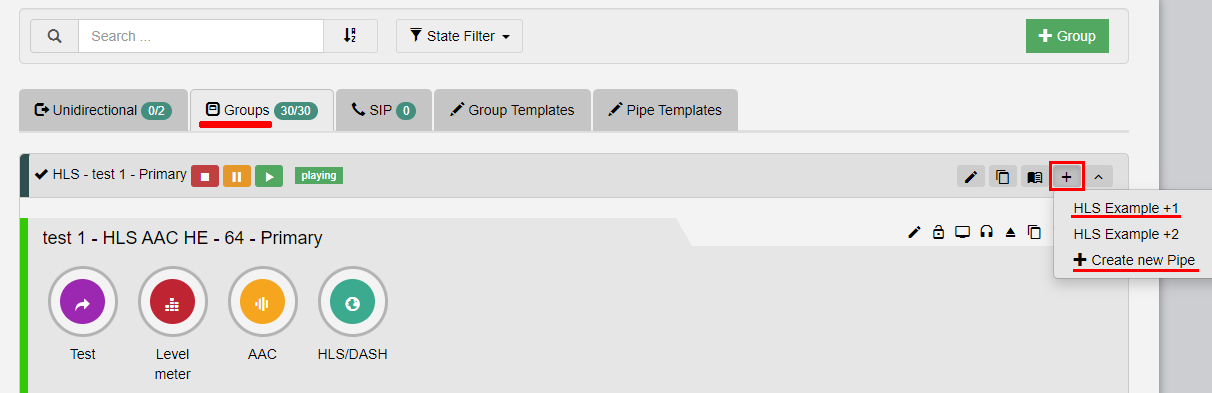
Prerequisite (optional): You have already created the PIPEs you want to add under the “Unidirectional” tab. Alternatively, you can also create entirely new PIPEs directly in the PIPE group.
See the following screenshot for how to add existing PIPEs to a PIPE group or create new PIPEs within the PIPE group.
¶ Using the master/slave configuration
Keep these points regarding master/slave config in mind when configuring any HLS/DASH PIPE elements:
- Every HLS/DASH PIPE group MUST only have one master.
- This applies to Master Config and Rendition groups configuration.
- A HLS/DASH PIPE group may have any number of slaves.
- The master PIPE should include the preferred format/bitrate you wish client players to use.
- The master PIPE MUST be the PIPE that includes the HLS/DASH Upload element.
- The slave PIPEs MUST NOT include the HLS/DASH Upload element.
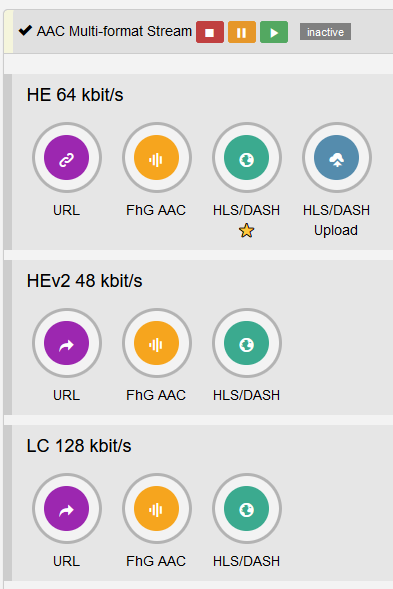
- The master HLS/DASH sink element is marked with a yellow star in the HLS/DASH PIPE group.