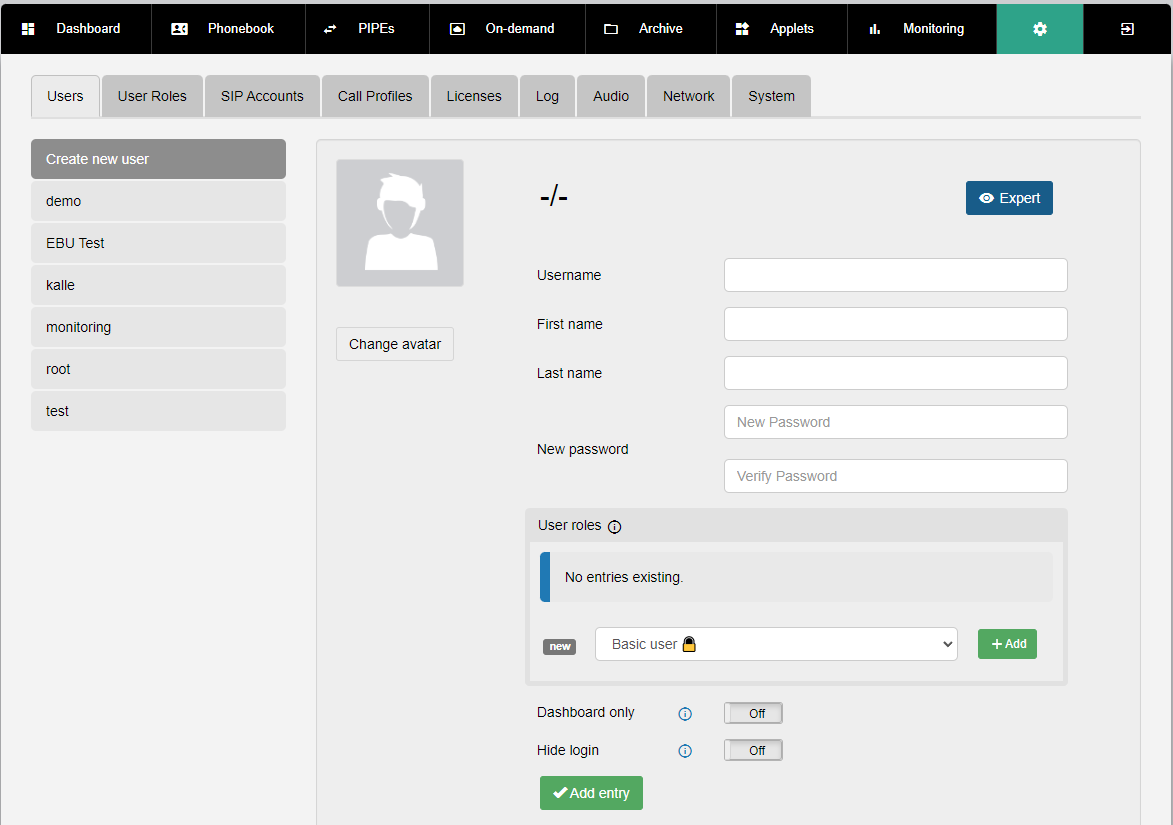
In this menu new users can be created and existing users edited or deleted.
| ! | Priority of User Roles |
| Note that when a user has multiple user roles the role which gives the user the most rights in a given situation is the one that counts. Avoid giving a user contradictory user roles, if this is a problem. |
| Element | Description |
| Create new role | While this option is selected, a new user can be configured. |
| List of existing users | Selecting one of these shows the configuration for that user and any changes made will be applied to that user. |
| Change avatar | Opens the file menu for selecting an avatar picture. Over this button you can see the current avatar picture for the user. |
| Username | The displayed username of the user is entered here. |
| First name | The first name of the user is entered here. |
| Last name | The last name of the user is entered here. |
| User roles | Via the dropdown menu to the right you can select a user role and then assign it to this user via click on the + button. Note that multiple user roles can be assigned to one user. |
| New Password | The new (or first) password for this user to log in. |
| Verify Password | Here the entered password must be confirmed by entering it a second time. |
| Dashboard only | If this toggle is set to "On", the user is limited to the dashboard. |
| Add entry | Creates the user with the chosen settings. |
| Only visible when editing an existing user | |
| Save Changes | Saves the changed user settings. |
| Delete entry | Deletes the selected user. |