This is the menu to configure a file uploader for use in PIPEs or the Archive.
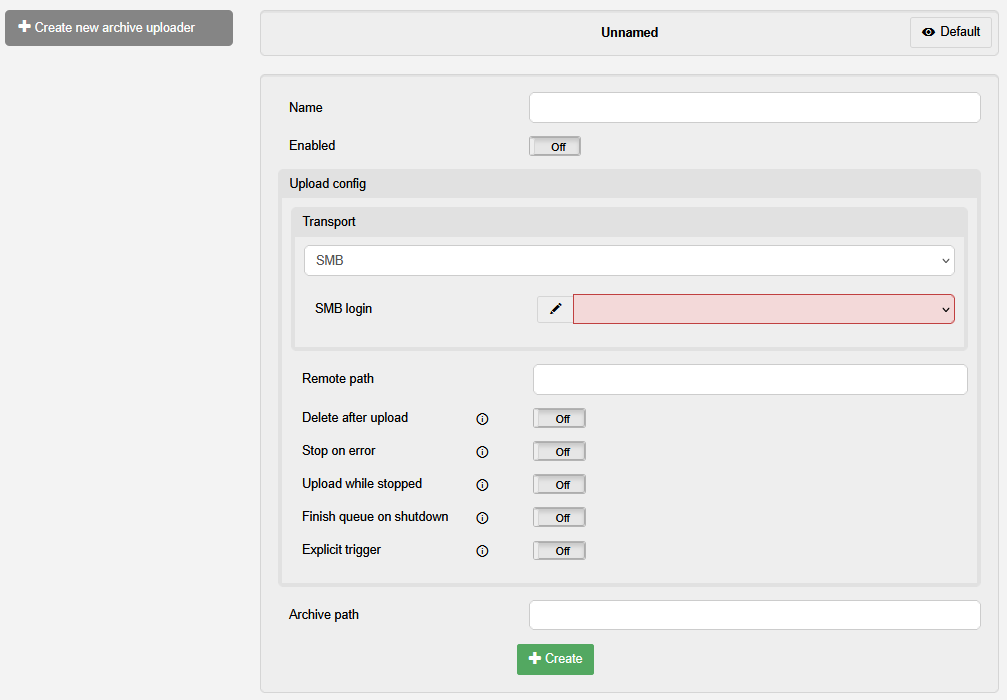
| Element | Description |
| ⇐ Left side | On this side is the option to + Create a new Archive Uploader and the List of available archive uploaders. |
| + Create new archive uploader | Select this entry to create a new archive uploader. |
| List of available archive uploaders | Lists all created archive uploaders. Select one to see and change the selected archive uploader. |
| ⇒ Archive uploader settings | On this side, you see all settings available for the call profile configuration. The displayed settings are for the currently selected archive uploader. |
| Name | Sets the name for the call profile. Note: Ensure this is a recognizable name, as this is how the call profile will be identified in other menus and widgets. |
| Enabled | Sets the size of the jitter buffer in milliseconds. Increasing the buffer size might help if you experience a lot of dropouts during calls. |
| Upload config | Configuration of the uploader |
| Transport | Configuration of the file transport |
| Transport Dropdown |
Dropdown: Selects the transport format to use.
Note: rsync and HTTP have extra options. See the following section for those options. |
| Login |
Configuration of the login. See the following sections for options sorted by format.
|
| Remote path | Sets the path under which uploaded files are saved on the remote system. |
| Delete after upload | Toggles whether files are deleted from this aixtream system after a successful upload ("On") or not ("Off"). |
| Stop on error | Toggles whether the PIPE is stopped after an error is encountered ("On") or not ("Off"). |
| Retry attempts | Sets how many retries are made in case of a failed upload. |
| Retry delay | Sets the delay in seconds between retry attempts. |
| Upload while stopped | Toggles whether files continue being uploaded even when the PIPE is stopped ("On") or not ("Off"). |
| Finish queue on shutdown | Toggles whether the PIPE delays a Stop command until after all outstanding uploads are completed ("On") or not ("Off"). If it is toggled “Off”, stopping the PIPE also stops all uploads. |
| Explicit trigger | Toggles whether only files marked for upload are uploaded ("On") or all applicable files are uploaded ("Off"). |
| Archive path | Sets the local path on the aixtream system where files are archived after a successful upload. Leave empty to disable archiving. |
¶ Transport configuration
¶ rsync
| Element | Description |
| SSH login |
Configuration of the login.
|
| Rate limit |
Sets a transfer limit for each transmission in kilobytes per second. Note: “0” means no limit. |
| Compatibility mode |
Toggles whether certain rsync flags to improve compatibility ("On") or not ("Off"). Note: Flags are --no-time + --size-only |
| Keep partial files | Toggles whether partially transferred files are kept ("On") or not ("Off"). |
¶ HTTP
| Element | Description |
| HTTP login |
Configuration of the login.
|
| Compression |
Dropdown: Sets the compression type for files. Files are compressed using this format before upload.
|
| Create directories | Toggles whether new folders are created according to Remote path settings ("On") or folder creation is left to the remote system ("Off"). |
| Server supports listings | Toggles whether file and directory listings are used ("On") or not ("Off"). Requires your HTTP API to support listings. |
¶ Login configuration
¶ SMB
| Element | Description |
| ⇐ Left side | On this side is the option to create a + New SMB login and the List of available SMB logins. |
| + New | Select this entry to create a new SMB login. |
| List of available SMB logins | Lists all created SMB logins. Select one to see and change the selected SMB login. |
| ⇒ Login settings | On this side, you see all settings available for the login configuration. The displayed settings are for the currently selected login. |
| Name | Sets the name for the SMB login. |
| Server | Sets the address for the SMB server. |
| Username | Sets the user name used for the login. |
| Password | Sets the password used for the login. |
| Port |
Sets the port used for the login. Note that the default port for SMB is “445”. |
| Timeout | Sets the timeout interval in seconds. |
¶ FTP
| Element | Description |
| ⇐ Left side | On this side is the option to create a + New FTP login and the List of available FTP logins. |
| + New | Select this entry to create a new FTP login. |
| List of available FTP logins | Lists all created FTP logins. Select one to see and change the selected FTP login. |
| ⇒ Login settings | On this side, you see all settings available for the login configuration. The displayed settings are for the currently selected login.- |
| Name | Sets the name for the FTP login. |
| Server URI | Sets the URI for the server to login on. |
| Port |
Sets the port used for the login. Note that setting “0” uses the default port. |
| Encryption mode |
Dropdown: Selects the encryption mode used during login.
|
| Username | Sets the user name used for the login. |
| Password | Sets the password used for the login. |
| Account | Sets the account name used for the login. |
| Passive mode | Toggles passive mode “On” or “Off”. |
| Timeout | Sets the timeout interval in seconds. |
¶ SSH
SSH login is used with SFTP and rsync.
| Element | Description |
| ⇐ Left side | On this side is the option to create a + New SSH login and the List of available SSH logins. |
| + New | Select this entry to create a new SSH login. |
| List of available SSH logins | Lists all created SSH logins. Select one to see and change the selected SSH login. |
| ⇒ Login settings | On this side, you see all settings available for the login configuration. The displayed settings are for the currently selected login. |
| Name | Sets the name for the SSH login. |
| Server URI | Sets the URI for the server to login on. |
| SSH host key |
Sets the host key to use for the login. Note: See the tooltip in the interface for information on key retrieval. |
| Username | Sets the user name used for the login. |
| SSH private key | Sets the private key to use for the login. |
| Comment | Information field: Shows comment information about the used private key. |
| Fingerprint (MD5) | Information field: Shows fingerprint information about the used private key. |
| Key length | Information field: Shows the length of the used private key. |
| Port |
Sets the port used for the login. Note that the default port for SMB is “22”. |
| Timeout | Sets the timeout interval in seconds. |
¶ HTTP
| Element | Description |
| ⇐ Left side | On this side is the option to create a + New HTTP login and the List of available HTTP logins. |
| + New | Select this entry to create a new HTTP login. |
| List of available HTTP logins | Lists all created HTTP logins. Select one to see and change the selected HTTP login. |
| ⇒ Login settings | On this side, you see all settings available for the login configuration. The displayed settings are for the currently selected login.- |
| Name | Sets the name for the HTTP login. |
| Server URI | Sets the URI for the server to login on. |
| Port |
Sets the port used for the login. Note that setting “0” uses the default port. |
| Scheme | Dropdown: Selects whether to use unsecured ("HTTP") or secured ("HTTPS") communication. |
| HTTP method |
Sets the HTTP Method to use.
|
| Authentication scheme |
|
| Proxy |
Sets a proxy server to reach the HTTP server over. Leave empty to disable proxy server use. Note: See the tooltip in the interface for supported URL formats. |
| Timeout | Sets the timeout interval in seconds. |
| Override user agent | Sets the user agent to identify as. Leave empty to use default. |
| Skip SSL verification |
Toggles whether verification of encryption is skipped ("On") or not ("Off"). Note: Only disable this for testing! |